

Key Takeaways
- AI-powered medical charting can reduce the time physicians spend on documentation.
- Specialty-specific templates help clinicians create structured clinical notes faster.
- The right medical charting software can help doctors reduce after-hours documentation.
The patient leaves. You finish the visit. But your workday isn’t over.
There’s still the SOAP note to complete, medications to prescribe, orders to enter, codes to select, and yesterday’s charts waiting in the queue. What should take a few minutes can stretch well into the evening.
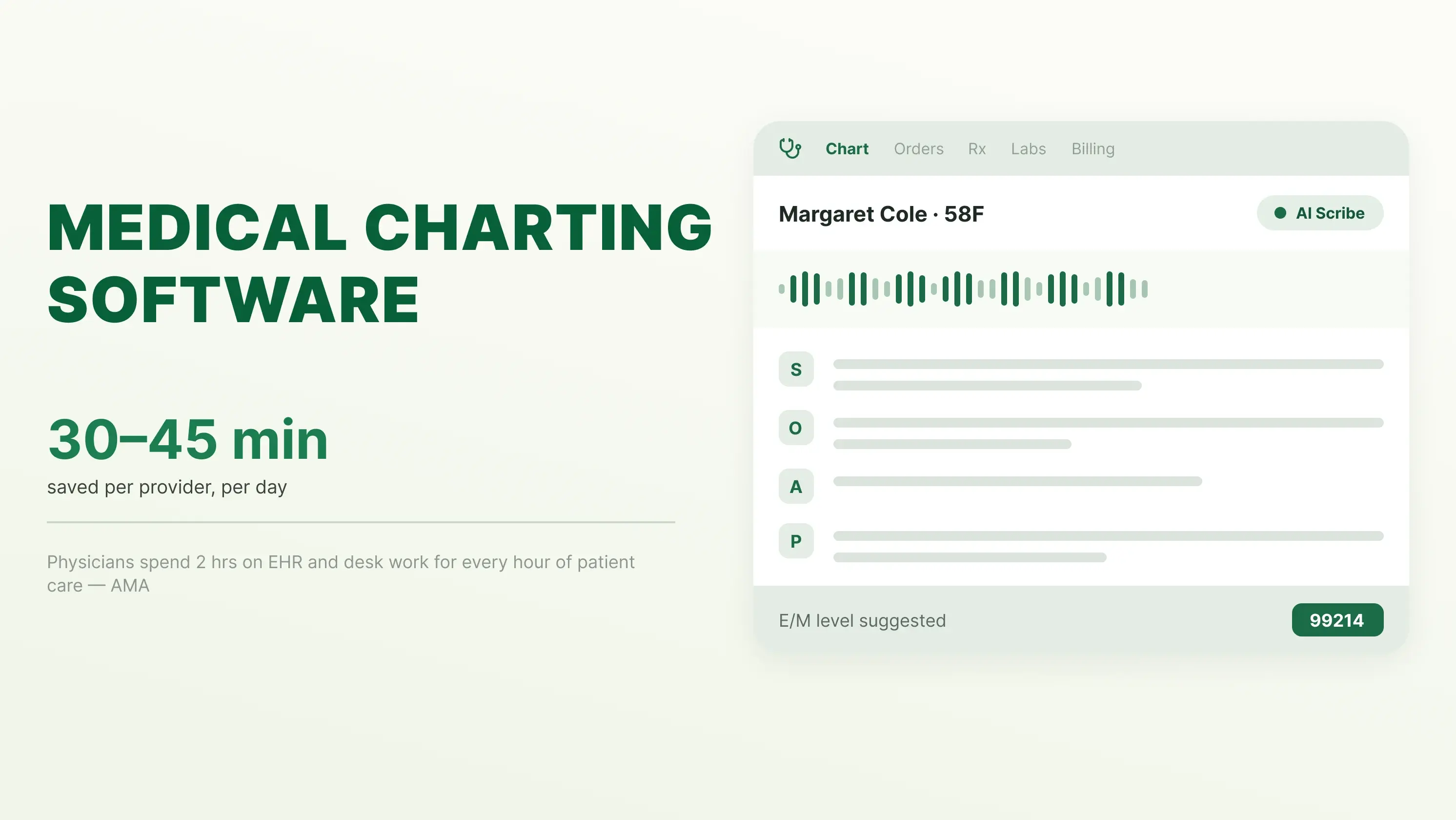
And this isn’t just a workflow problem for a few busy clinicians. The American Medical Association reports that physicians spend nearly two additional hours on EHR and desk work for every hour of direct patient care, with another 1–2 hours of personal time each night spent on additional clerical work.
This guide breaks down the 10 features that can make medical charting faster, easier, and less dependent on manual data entry.
What is Medical Charting Software?
Medical charting software is a digital tool designed to help clinicians draft, organize, and store their clinical notes. It replaces paper charts and automates most of the physician’s tasks.
Unlike paper charts, medical charting software keeps patient records searchable, structured, and accessible from supported devices. It also goes beyond basic digital recordkeeping by helping clinicians automate repetitive documentation tasks and pull relevant information into the chart.
For example, instead of manually typing the same information into every note, you can use specialty-specific templates, voice documentation, AI-assisted scribing, auto-populated fields, and reusable macros. These tools will help you spend less time on administrative work and more on patient care.
Who Can Use Medical Charting Software?
Medical charting software can be used across different types of healthcare practices, including:
- Primary care practices for routine visits, diagnoses, prescriptions, and follow-ups
- Specialty practices that need templates and workflows tailored to their clinical needs
- Small and independent practices looking to reduce manual documentation without adding administrative staff
- Multi-provider practices that need standardized charting workflows across clinicians
Why Charting Time is a Major Burnout Driver for Clinicians
Documentation is one of the most persistent administrative burdens clinicians face. Long charting sessions, excessive medical record tasks, and after-hours documentation can extend the workday beyond the scheduled patient care period.
Slow Charting Can Affect Practice Revenue, Too
Documentation time can also create an operational cost for practices. It is because spending more time closing charts after visits can slow down other downstream processes. These processes include completing the encounter form, billing, and, eventually, delaying payments.
That makes charting efficiency more than a clinician-comfort issue. For practices, reducing unnecessary documentation work can help free up clinician time, improve workflow capacity, and move charts through the revenue cycle more efficiently.
10 Time-Saving Features to Look for in Medical Charting Software
Choosing the medical charting software is more than settling for legacy medical record software features. Here are the ten features you must look for:
1. Specialty-Specific Templates
Generic SOAP notes waste time. A cardiologist doesn't need to be in the field of pediatrics. A dermatologist shouldn't have to scroll past 10 irrelevant sections to find a lesion diagram.
Pre-built specialty templates ship with the diagnosis codes, exam fields, and order sets your specialty actually uses. Instead of building from scratch or forcing a generic template to fit, you open the note, and 70% of the structure is already there.
What to ask the vendor: "Do you have a pre-built template for my specialty, or will I have to build one? Show me the sample."
2. Voice Recognition and AI Scribe
Typing during a visit puts a screen between you and the patient. AI scribes listen to the conversation and draft the note for you. You review, edit, and sign.
The good ones now handle ambient documentation, meaning the note is basically written by the time you walk out of the room. Older voice-to-text tools just transcribed. Newer AI scribes automatically structure the output in SOAP format.
What to ask the vendor: "Is your AI scribe built in, or is it a third-party integration I have to pay for separately?"
3. Smart Auto-Population from Prior Visits
Chronic patients repeat themselves. Meds and allergies rarely change from visit to visit. Good charting software pulls forward what was true last time and flags what's new.
This is one of the most underrated time savers. A family physician seeing 25 patients a day, with 60% of visits being follow-ups, can save roughly 30-45 minutes just by not retyping the history.
What to ask the vendor: "When I open a follow-up visit, does the system pull forward the last problem list, meds, and allergies, or do I start blank?"
4. One-Click SOAP Note Builder
The best systems let you build a full note from checkboxes, dot phrases, and macros. Pick the assessment, click the plan, and sign. An 8-minute note becomes a 2-minute note.
The trick is having enough pre-loaded options, so you're not typing full sentences, but not so many that finding the right one is its own headache. Balance matters.
What to ask the vendor: "Can I customize dot phrases and macros myself, or do I need to submit a ticket to your support team?"
5. Integrated E-Prescribing (eRx and EPCS)
Sending a prescription shouldn't mean logging into a separate portal. E-prescribing built into the chart, with EPCS for controlled substances, kills the tab-switching.
Fewer pharmacy callbacks, too, because the script is legible and the drug interaction check already ran before the pharmacist saw it. Refill requests come back into the same chart, not a fax queue.
What to ask the vendor: "Is EPCS included at no extra cost, and how long does the setup take? Some vendors charge a per-provider fee for controlled substance access."
6. Customizable Order Sets and Macros
Every clinician has 20-30 things they order constantly. Blood panels, referral letters, follow-up instructions. Order sets let you fire all of them with one click.
Macros do the same for phrases you type over and over ("patient tolerated procedure well, no complications"). A well-built macro library shaves 10-15 seconds off every note. Multiply by 25 notes a day.
What to ask the vendor: "Can I share my order sets with other providers in the practice, or does each provider have to build their own from scratch?"
7. Mobile Charting on Tablet or Phone
Not every note has to be finished at the desk. Charting on an iPad between rooms or knocking out a lab review from your couch at 8 pm adds hours back to your week.
Make sure the mobile version is a real native app, not a stripped-down browser view that loads slowly and hides half the fields. The difference between the two is night and day when you're trying to close a chart at a red light in the parking lot.
What to ask the vendor: "Is your mobile app on iOS and Android app stores, or is it a mobile web wrapper?"
8. Real-Time Lab and Imaging Integration
If a CBC result takes three windows to open, you'll stop looking at labs the same day they come in.
Direct feeds from LabCorp, Quest, and local hospital systems mean results appear tied to the right patient and order, ready to sign off in one place. No manual matching. No PDFs sitting in a shared inbox waiting for someone to file them.
What to ask the vendor: "Which lab and imaging providers do you have live interfaces with today? Any setup fees to add new ones?"
9. Built-in ICD-10 and CPT Coding Assistance
Coding at the point of care beats sending charts to a biller who kicks them back two days later. Software that suggests an ICD-10 based on the note, and flags E/M level based on your documentation, closes the loop in seconds.
Better yet, it prevents undercoding. A lot of clinicians default to a 99213 out of habit when documentation actually supports 99214. That's real revenue.
What to ask the vendor: "Does the system suggest E/M level in real time based on the note I'm writing, or only after I sign?"
10. Patient Portal and Intake Form Sync
Patients filling out their own history, medication list, and reason for visit before they arrive means you walk in with a chart that's half-built already.
The intake form should populate the note directly. If your staff is retyping what the patient just entered on their phone, the integration isn't real; it's just a PDF the front desk prints out.
What to ask the vendor: "When a patient submits an intake through the portal, does the data flow into the chart automatically, or does someone have to re-enter it?"
How PracticeEHR Delivers All 10 Time-Saving Medical Charting Software Features
By the time you've read through the list above, one question remains: which platform actually does all of this without duct tape between modules?
PracticeEHR was built for independent and small- to mid-sized practices, and every feature listed above is included in the core system, not sold as an add-on.
Specialty-specific templates: Pre-built for cardiology, dermatology, internal medicine, family medicine, pain management, podiatry, gastroenterology, pulmonology, and 19 more. Templates are editable in the software's setup module; no support ticket is needed.
AI scribe and voice recognition: Ambient documentation is built in. While you speak to your patients, the built-in multilingual AI scribe captures your conversation and creates structured notes. You talk, PracticeEHR structures the note.
Auto-population and one-click SOAP: Prior meds, allergies, problems, and history pull forward automatically. Dot phrases and macros are yours to customize on the fly.
eRx and EPCS: Both are included at no extra cost. Setup takes days, not weeks.
Order sets, mobile app, lab integration, coding assistance, and portal-to-chart sync: All native. No third-party integrations to license separately.
Practices switching from legacy systems typically report saving 30-45 minutes per provider per day in the first month.
How to Choose the Right Medical Charting Software for Your Practice
The right medical charting software should fit your specialty, existing workflow, technology requirements, and budget.
Before choosing a platform, practices should evaluate how easily it handles clinical documentation and connects with billing and practice management systems. Your patient record management software should protect patient information and all electronic medical charts without creating additional administrative work.
1. Match the Software to Your Specialty
A general charting platform may cover basic documentation needs, but specialty practices often require more specific workflows. Look for templates, clinical terminology, forms, and documentation tools designed around your specialty.
For example, a dermatology practice may need lesion documentation and procedure templates, while a behavioral health practice may prioritize treatment plans and behavioral health assessments.
2. Decide Between Cloud-Based and On-Premise Software
Cloud-based charting software is hosted by the vendor and accessed via the internet, while on-premises systems are installed and managed on the practice's own infrastructure.
For many smaller practices, cloud-based systems can reduce the need to maintain servers and manage big IT teams. On-premise systems may provide greater control over the practice's own IT environment but can require more resources for maintenance and security.
3. Check Billing and Practice Management Integration
Charting doesn't happen in isolation. Clinical documentation often feeds into coding, claims, scheduling, payments, and other administrative workflows.
A platform that connects charting with practice management and billing can reduce duplicate data entry and the need to move information between separate systems.
PracticeEHR: Built to Save Clinicians' Documentation Time
The right medical charting software can make clinical documentation ten times easier than doing it manually. Features like AI-assisted scribbing, specialty-specific templates, integrated E-prescribing, customizable macros, and letter builders can help you complete medical charting before your working hours end.
PracticeEHR brings these capabilities together with a complete nine-tool AI suite, customizable templates, and integrated clinical and administrative workflows. Book a demo to see how PracticeEHR can help simplify charting for your practice.

.svg)
