Update – June 2025
OVERVIEW OF UPDATES
Insurance Plan - Hyperlinking
As part of ongoing usability improvements, the system now supports clickable hyperlinks for insurance plans listed in the following modules of the Home Tab,
-
Patient In Office
-
Notes in Progress
-
Not Billed Encounter
Previously, insurance plan details were displayed as plain text. With this enhancement, users can now click directly on the insurance plan name to be automatically redirected to the Insurance tab within the patient’s profile.
Important Point: One-click access to patient insurance details from multiple locations.
Navigation
-
Home > Patient In Office
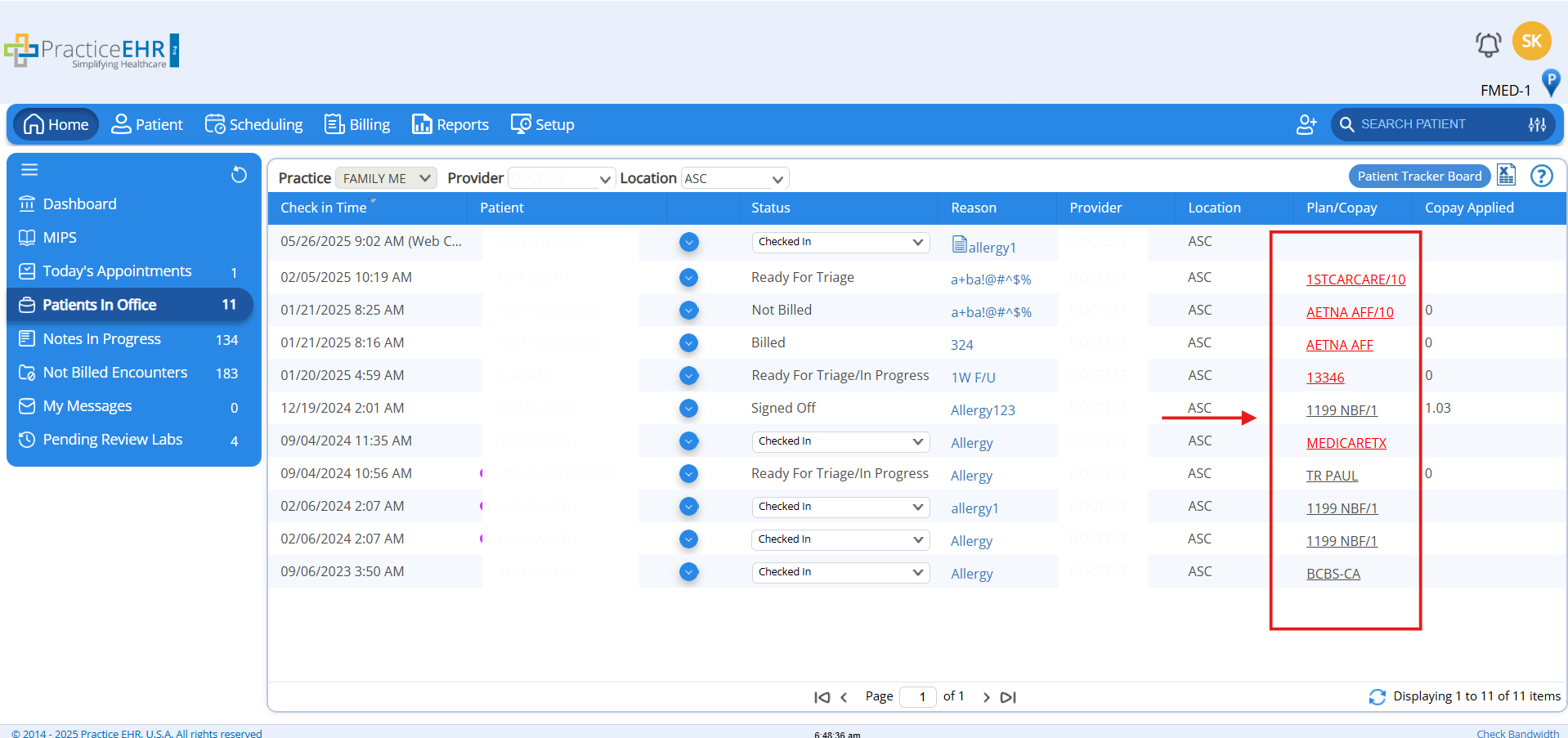
-
Home > Notes in Progress
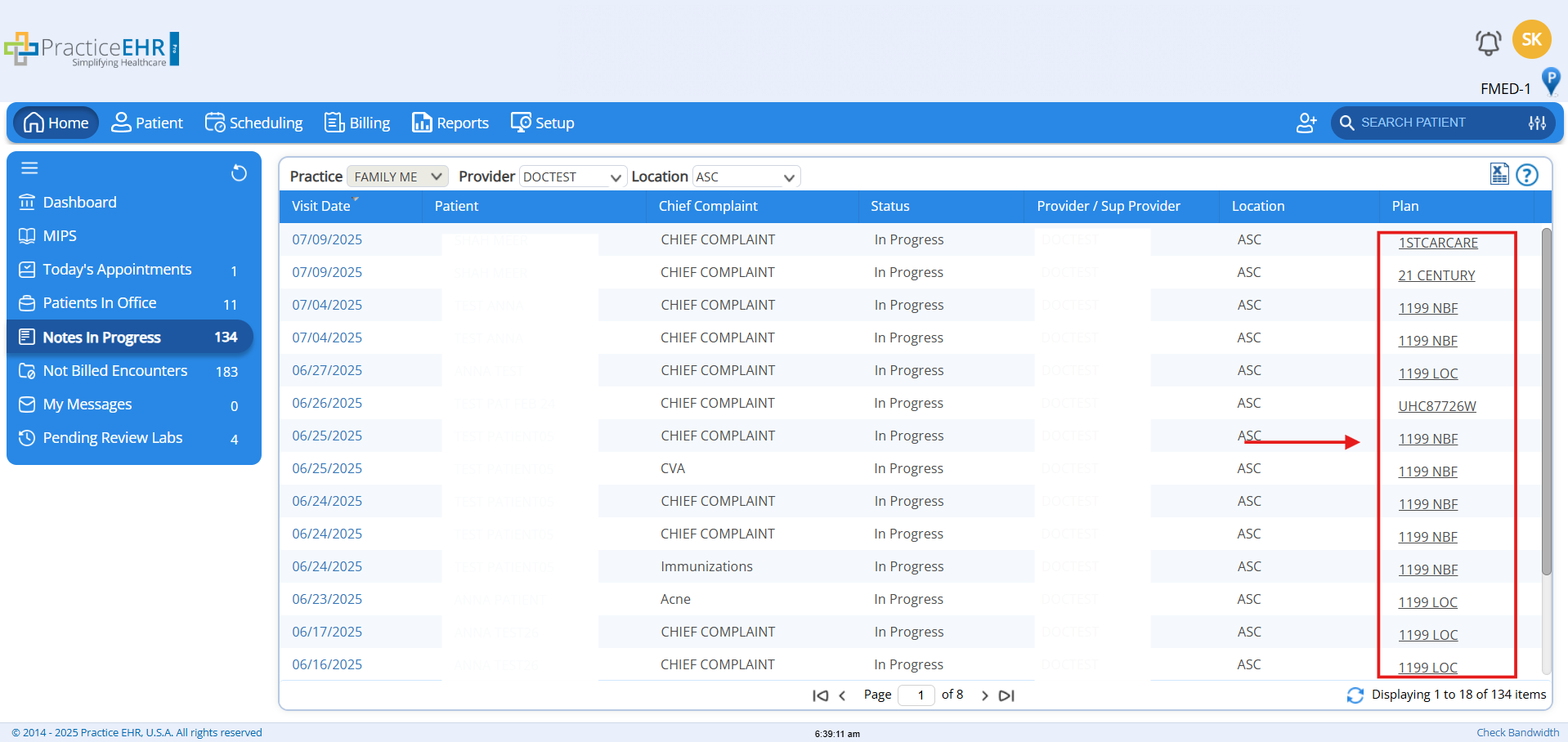
-
Home > Not Billed Encounters
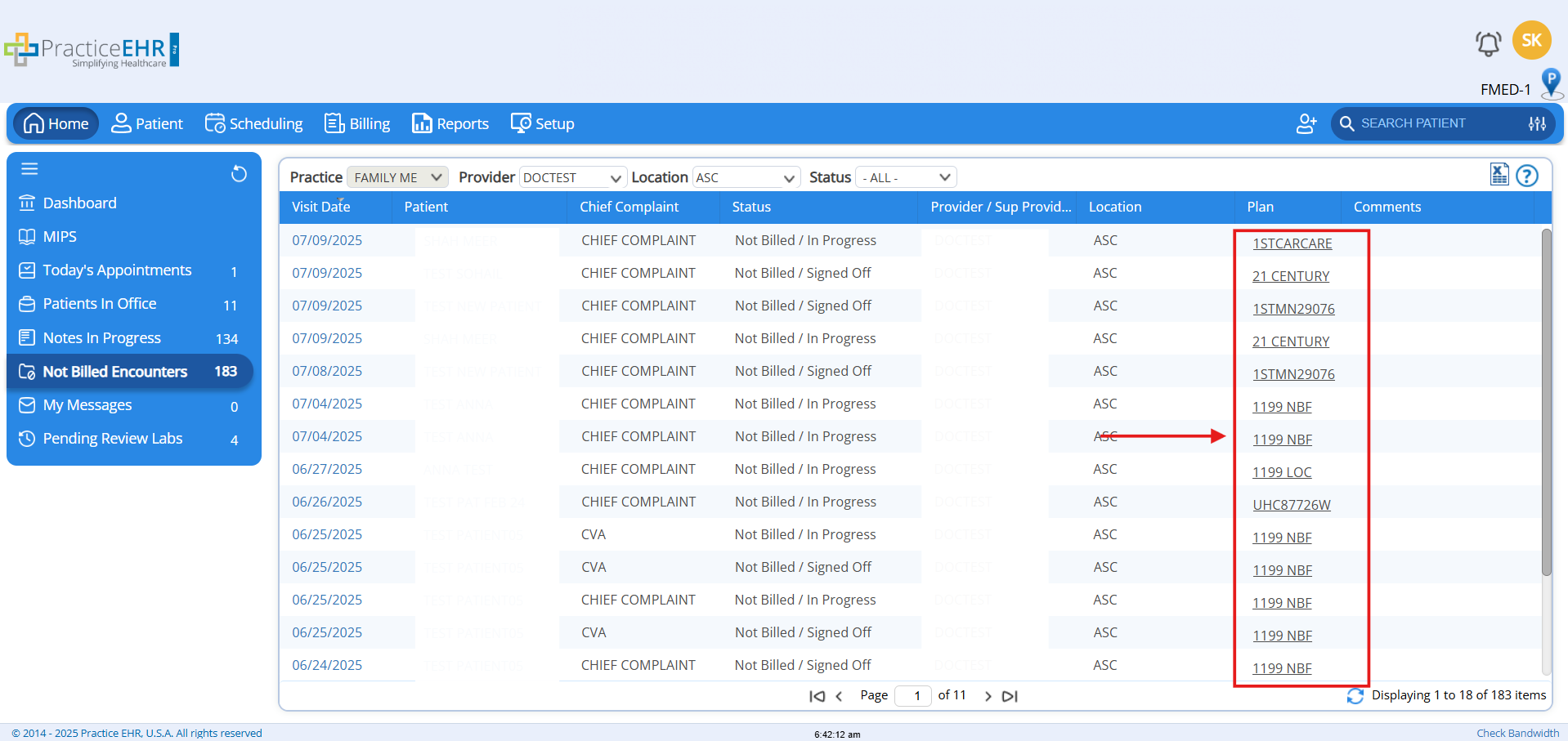
-
On clicking on the Plan, the system will redirect the user to the Insurance Tab of the Selected Patient Plan, as shown below.
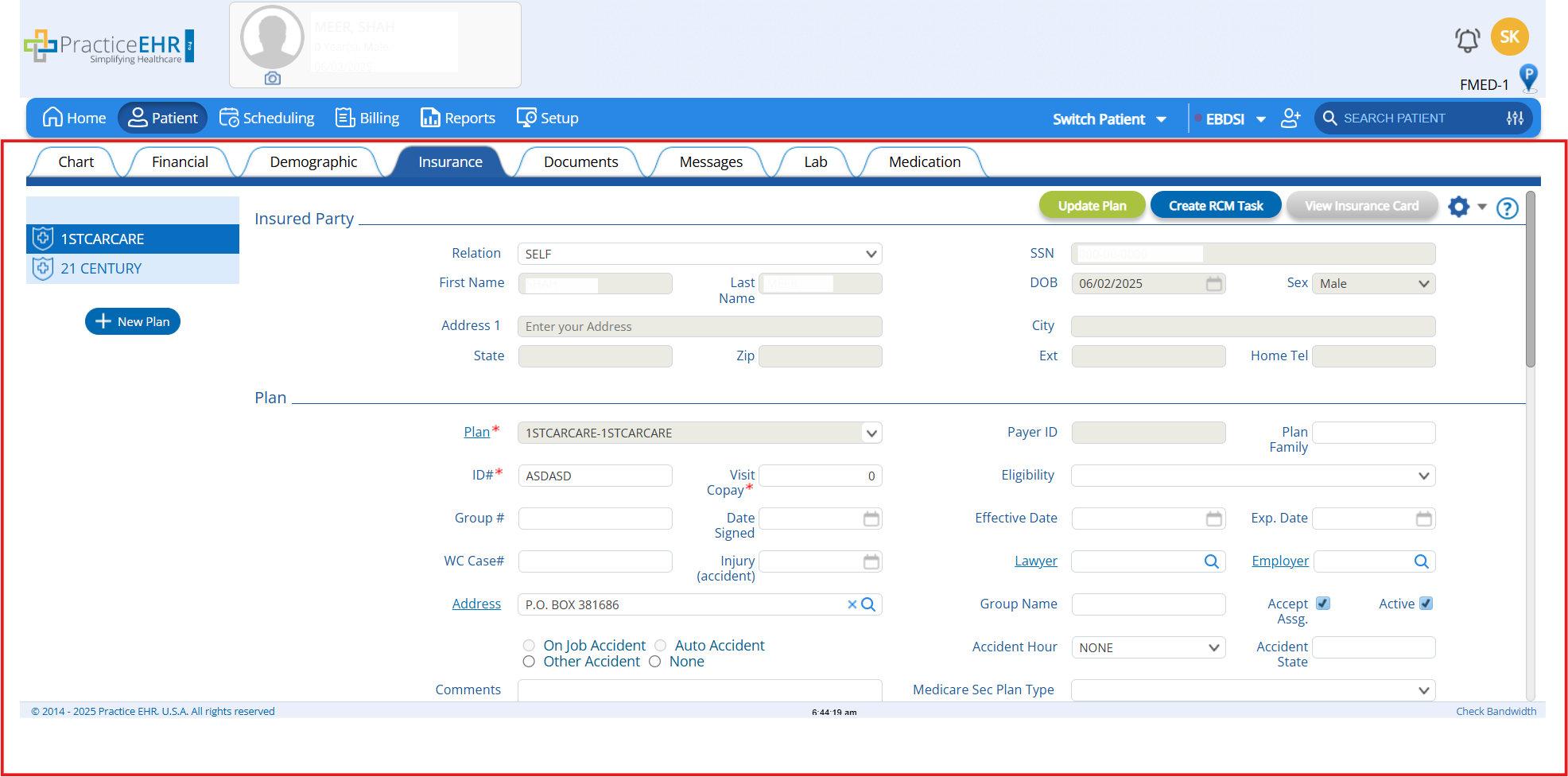
EBDSI Pop-up Update
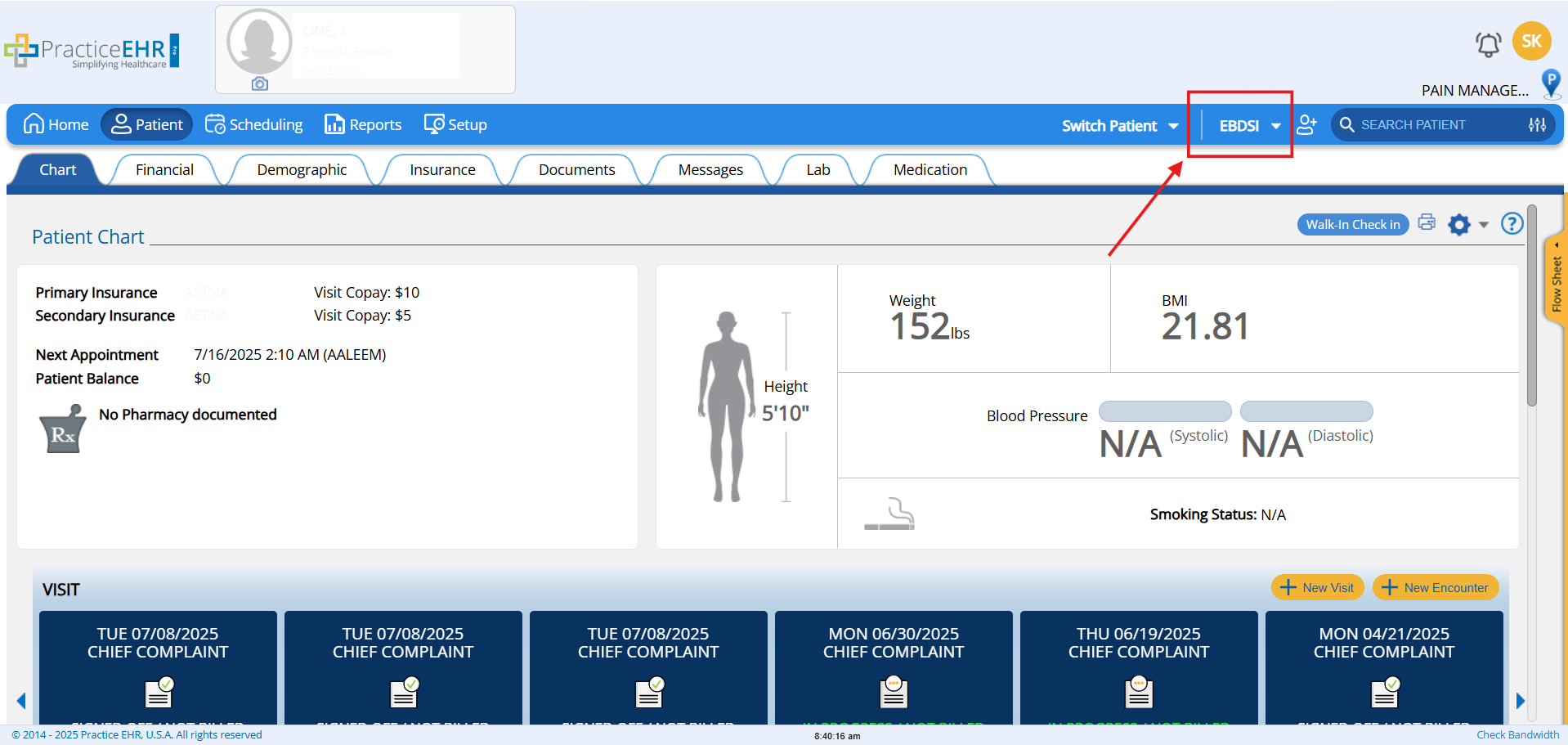
In this release, the EBDSI pop-up behavior in Patient Profile has been enhanced to improve user control.
EBDSI pop-up will now load only on user click instead of auto-loading on the Patient Profile, as shown below:
Navigation
-
Patient > EBDSI
AI Scrubbing Functionality Enhancement
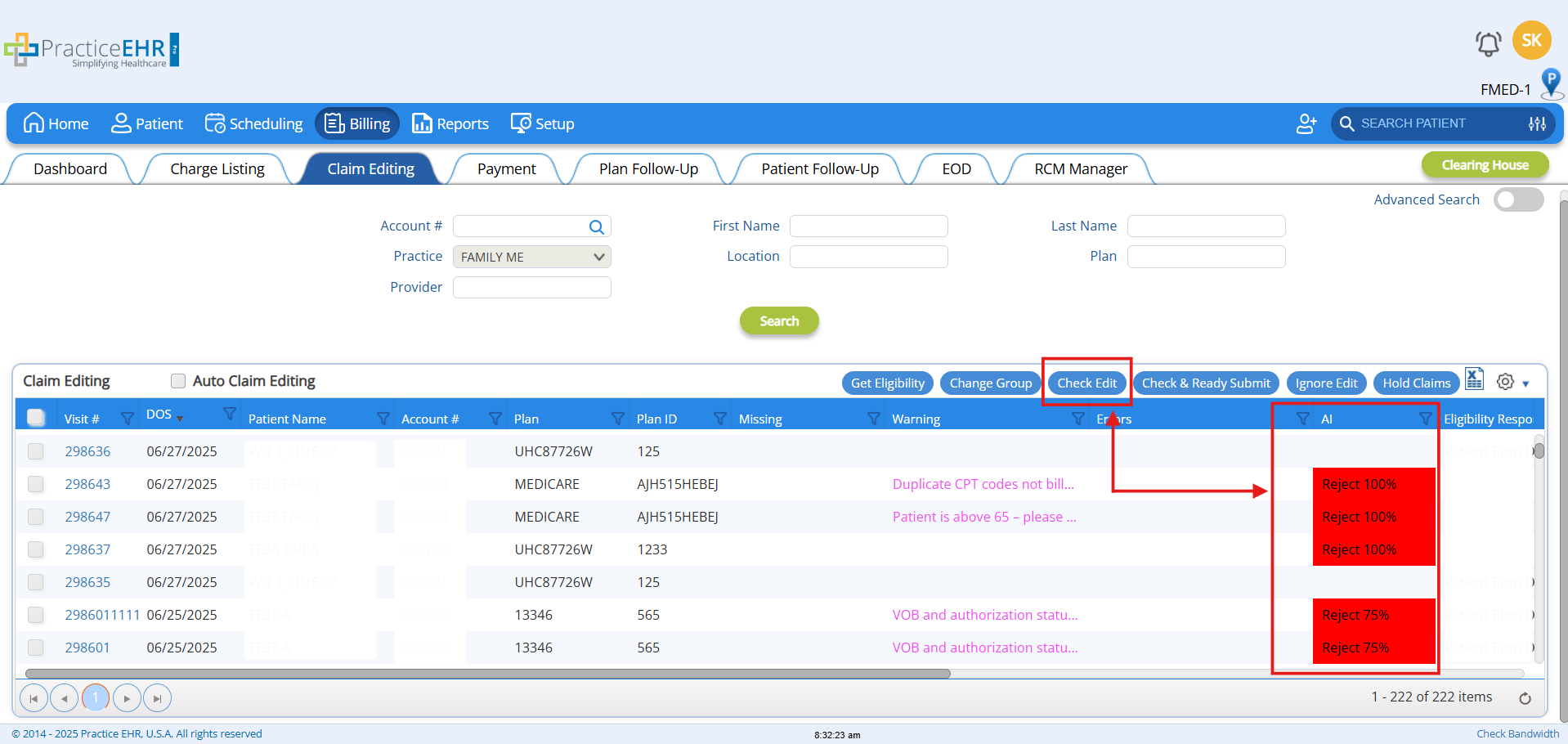
In this release, a key enhancement has been introduced to the AI Scrubbing functionality within the Claim Editing module.
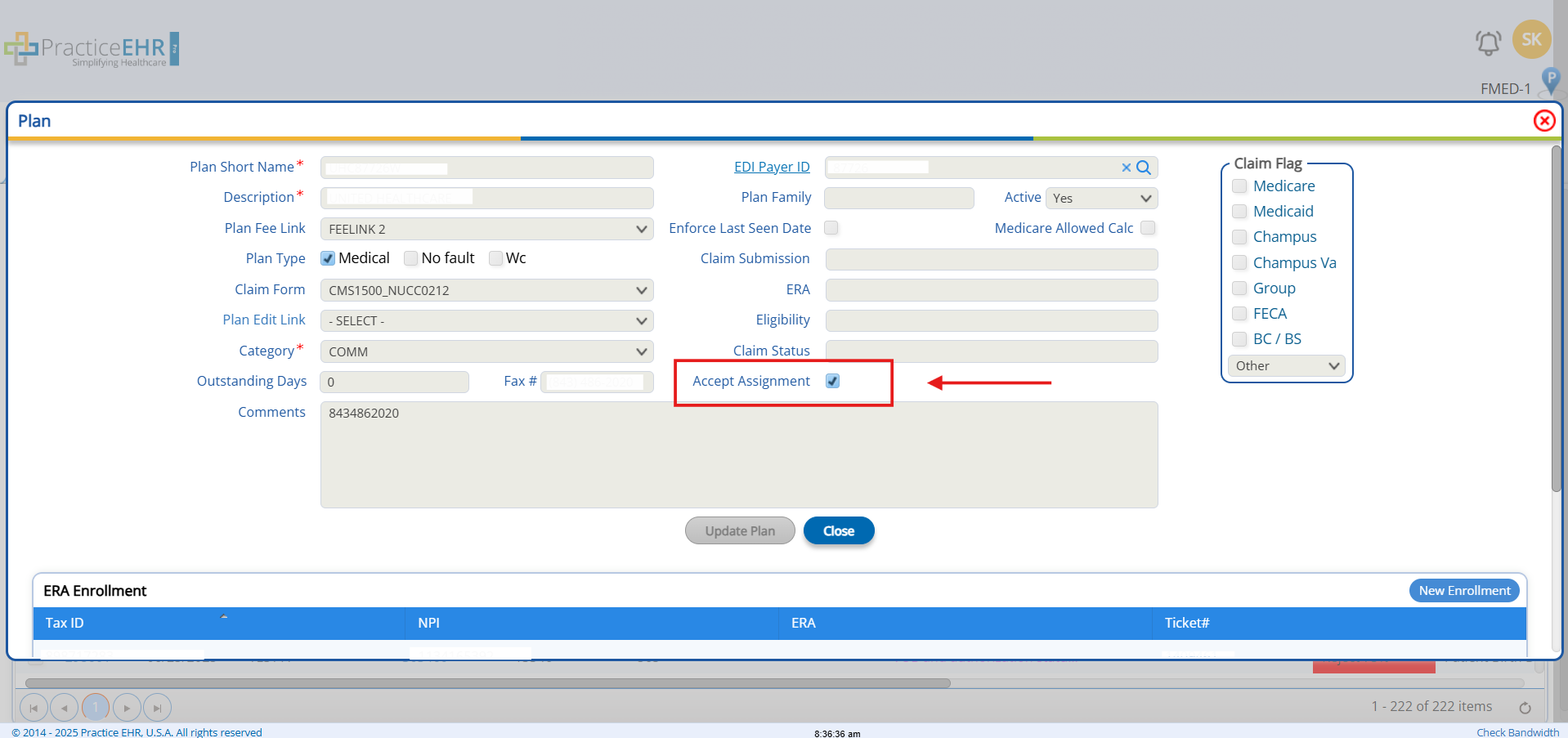
The "Check Edit with AI" feature will operate when the associated insurance plan has the "Accept Assignment" option enabled.
Key Benefit
-
AI-edits claim validation is performed on enabled Accept Assignment Plans to help ensure error-free submissions and reduce the risk of claim rejection.
Navigation
-
Billing > Claim Editing > Check Edit
Trigger Condition
The user initiates Check Edit with AI while editing a claim.
System Behavior
-
The system verifies whether "Accept Assignment" is checked/enabled in the linked insurance plan.
-
If enabled, the AI proceeds to validate the claim for potential issues.
-
If not enabled, the AI validation will not be executed.
Reschedule Action in Office Visit Reminders - Enhancement
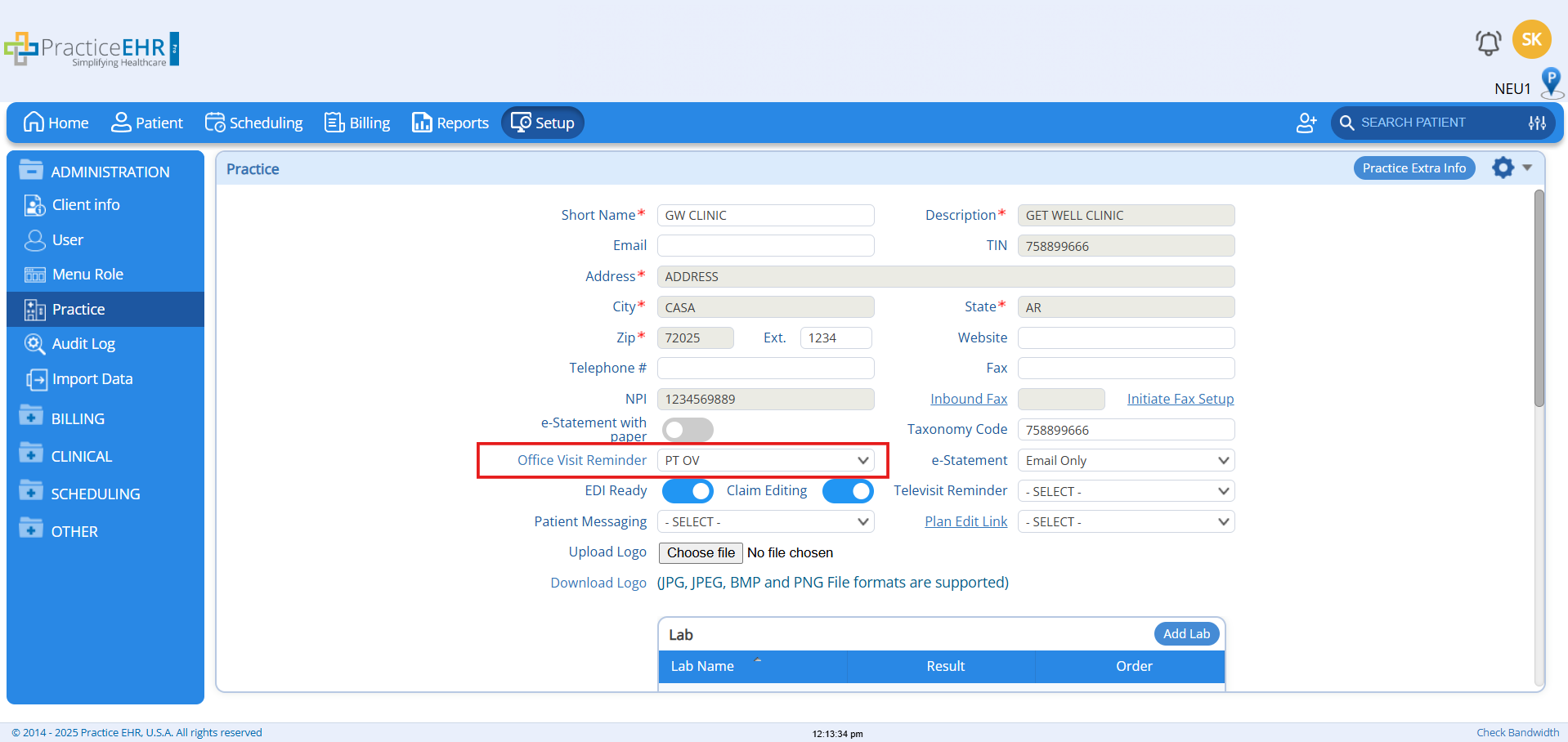
In this release, practices can now configure a Reschedule action for appointments marked as rescheduled. This can be set up via Setup > Practice > Office Visit Reminder > Add Action.
Previously, no automated reminder was triggered when an appointment was rescheduled. With this enhancement, when the appointment status is updated to "Reschedule Appointment", the system will automatically trigger the Reschedule action, sending the predefined email or SMS notification to the patient accordingly. This enhancement helps ensure patients are promptly informed of rescheduled appointments.
Key Benefits
-
Automated Patient Notifications: Ensures patients are promptly informed when appointments are rescheduled.
-
Reduced No-Shows: Timely reminders help decrease missed appointments.
Steps to Follow
-
Navigate to Setup, then go to Administration, and open the Practice tab as shown below.
-
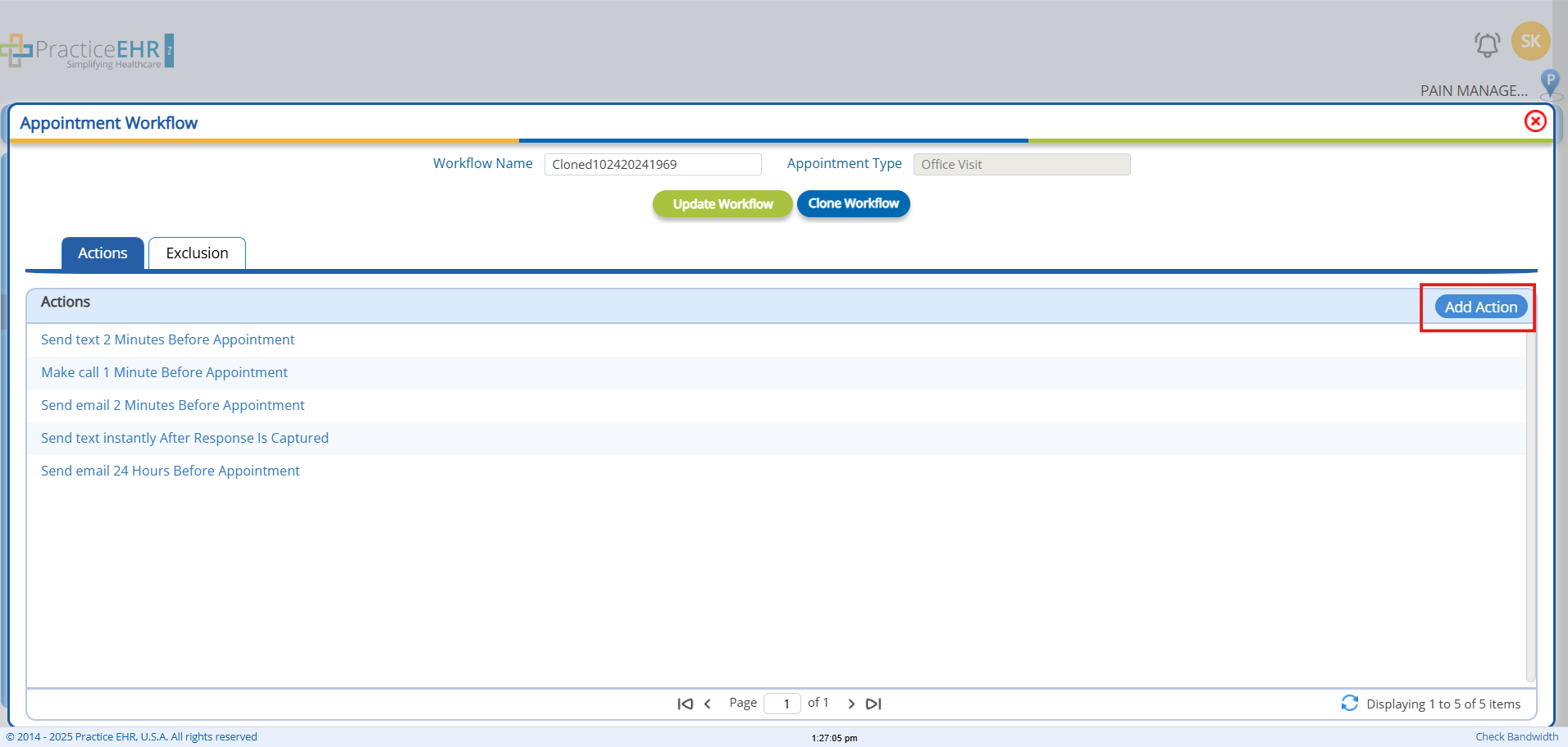
Clicking on the Office Visit Reminder, the Appointment Workflow Modal window will appear, where the user can:
-
View the Workflow Name & Appointment Type Fields.
-
In the Action Tab, the User can view and add a New Action using the Add Action button.
-
-
-
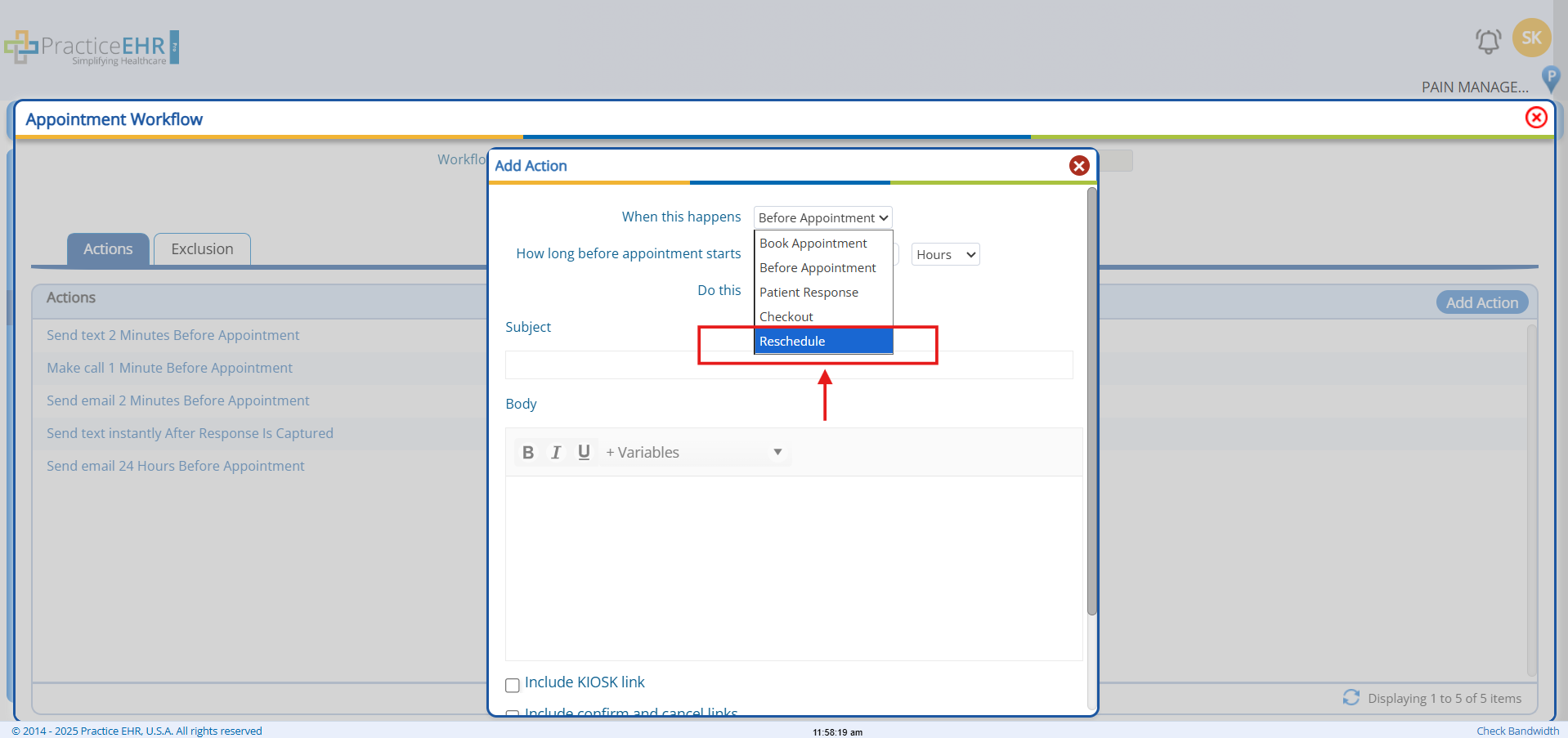
In the Add Action screen, select the Reschedule option as a Trigger from the dropdown, and select the Action, i.e., SMS, Email, and Call, as shown below.
-
-
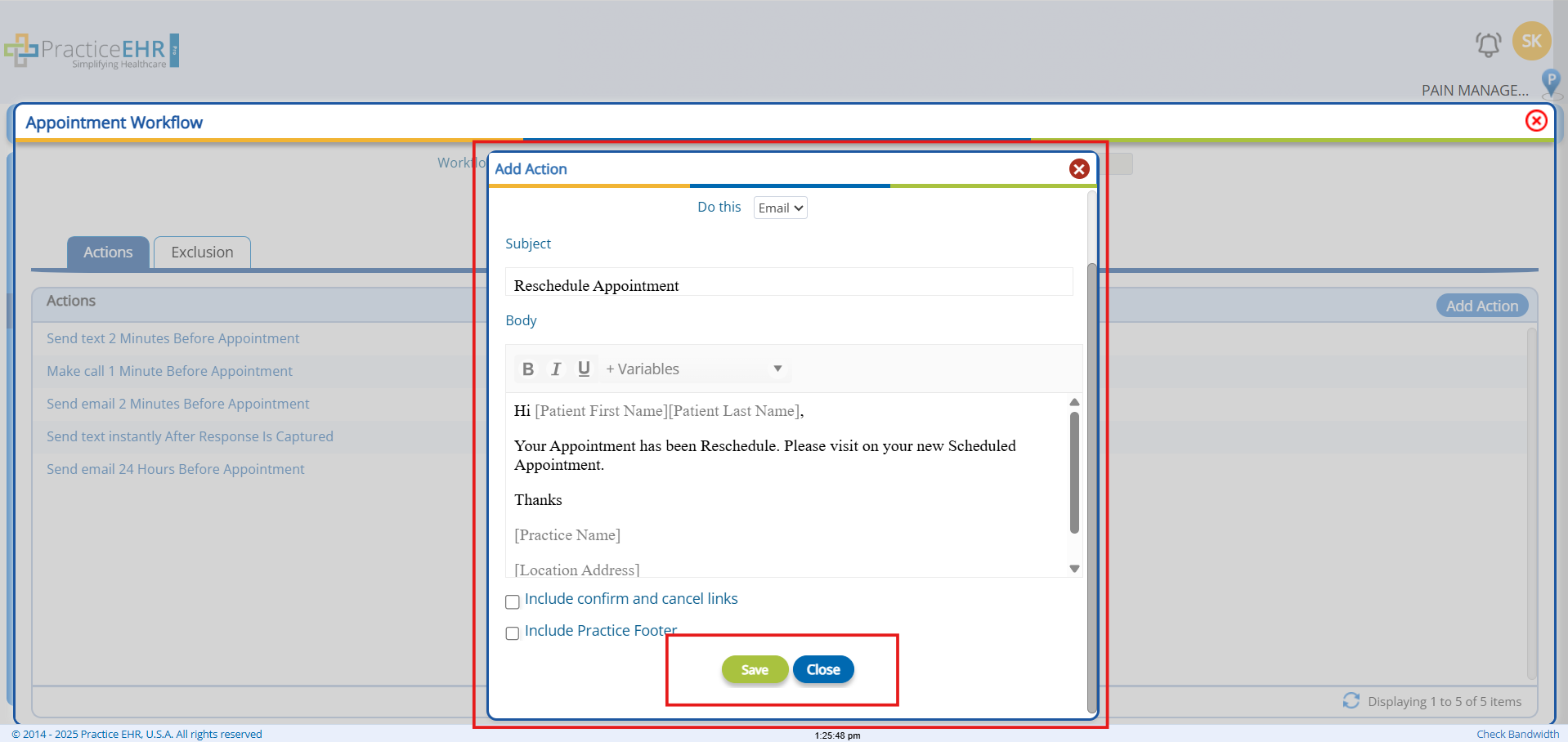
After setting up the Email/SMS/Text, click on the Save Button.
-
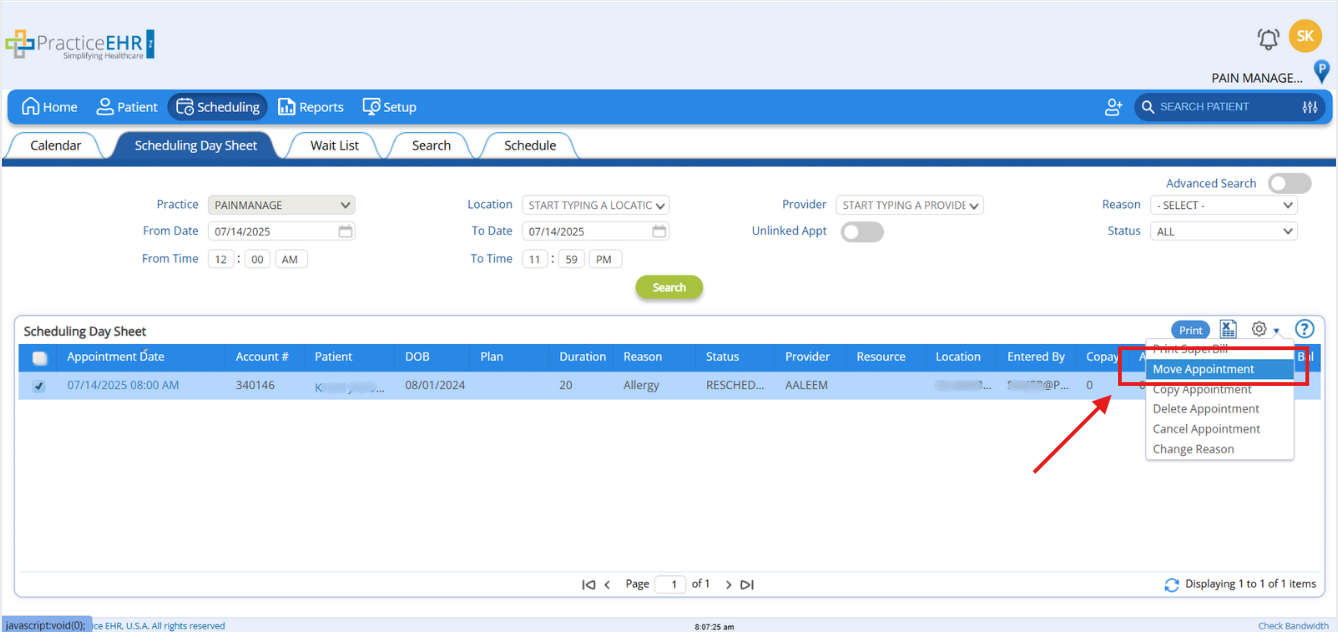
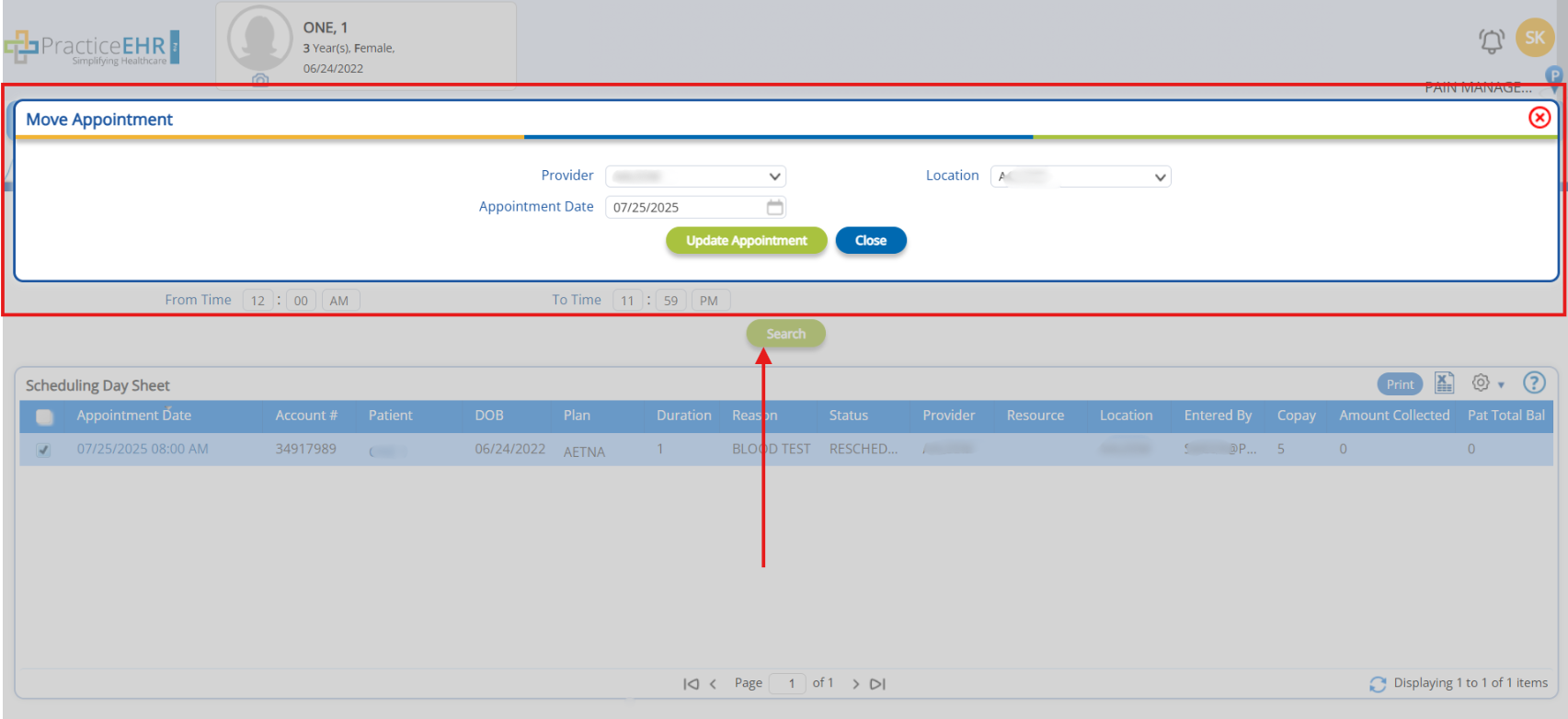
Now, after creating the schedule, visit the Scheduling Tab, then the Scheduling Day Sheet, and click Move Appointment in the Gear Icon, as shown below.
-
Fill the Fields, i.e., Select Provider, Location, and Appointment Date, and click on the Update Appointment button.
-
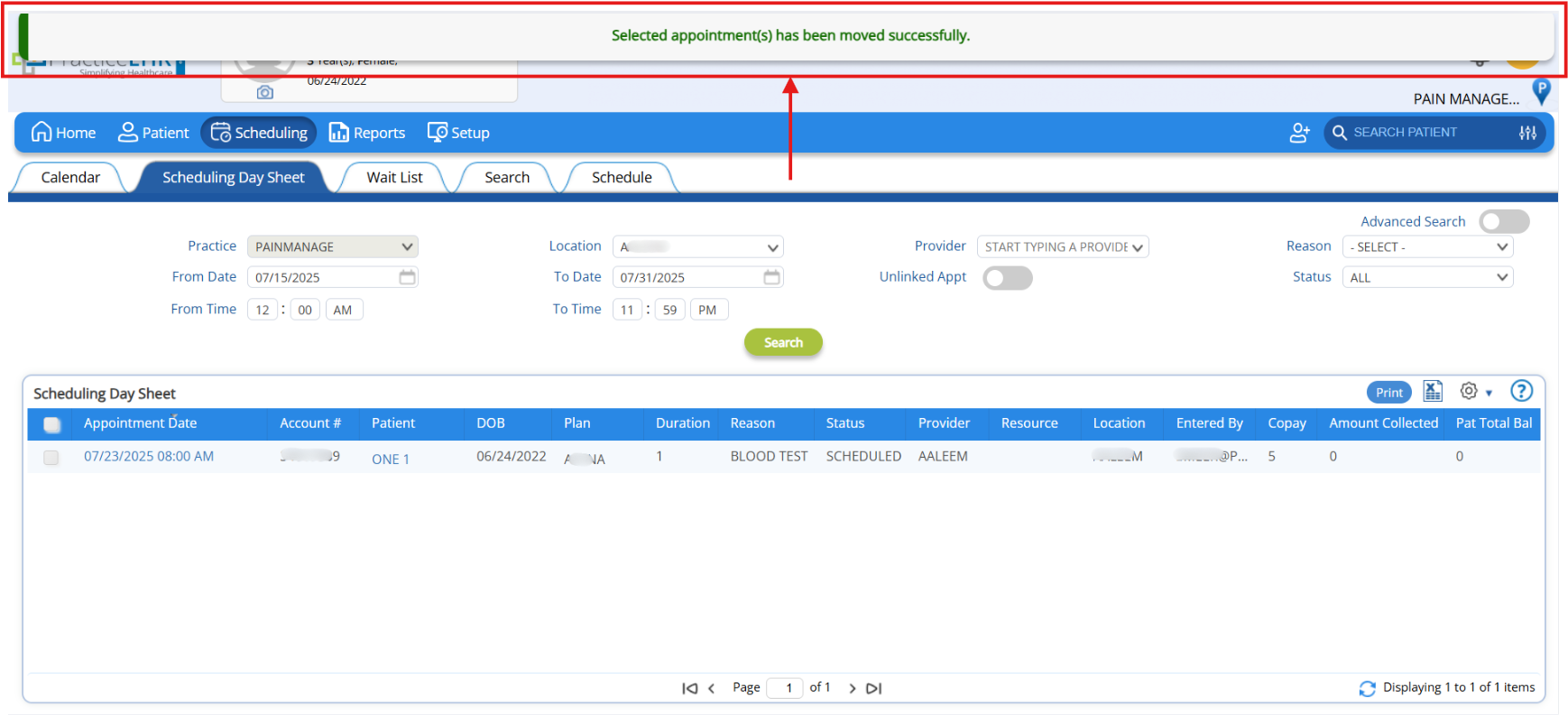
Once the Appointment is moved, the system will populate the Message as shown in the screen below.
-
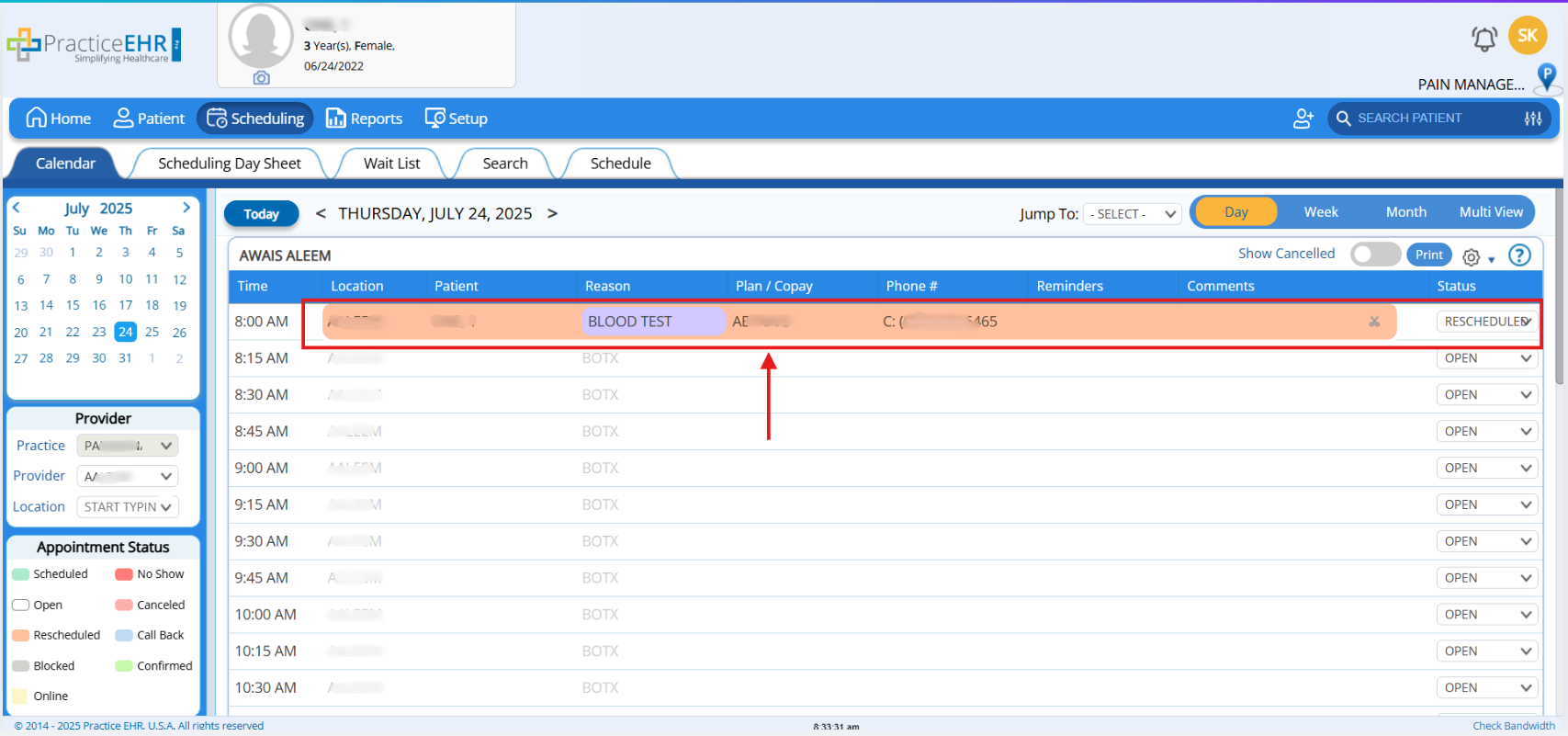
In the Calendar tab, the Reschedule appointment is visible, according to the Location and Provider.
-
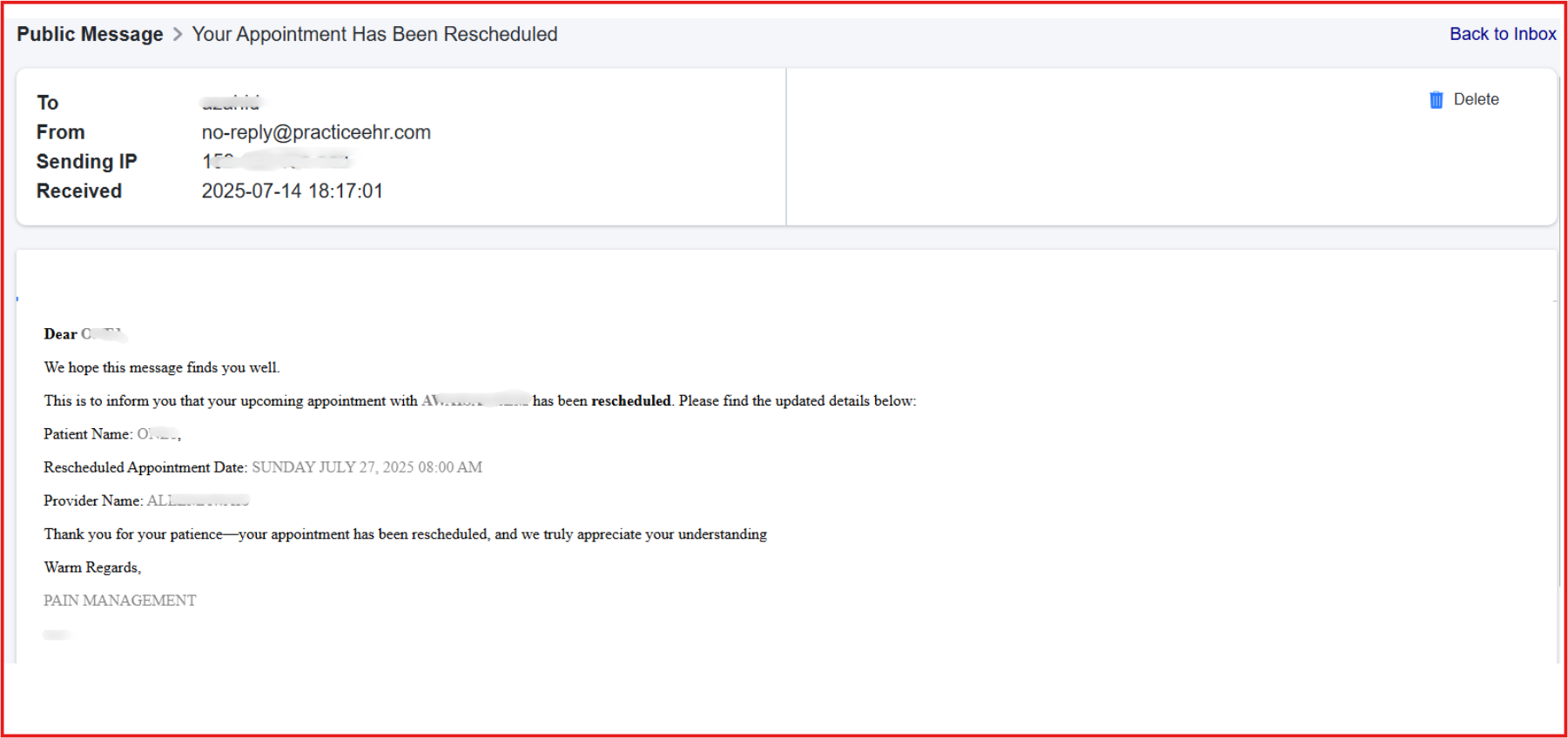
Here is the rescheduling email sent to the patient upon rescheduling the appointment.

Tried and Trusted by Thousands of Providers